
We’ve all pinned a schedule to the wall thinking it would change everything. Two weeks later, the boxes were too small to write anything, the light gray of the holidays had disappeared in the print, and the document ended up under a pile of mail. The problem isn’t the creation tool; it’s what we check before hitting “print”.
Black and white readability: the test no one does before printing a monthly schedule
Most online calendar templates rely on color codes to distinguish weekends, holidays, and work periods. On screen, the result is appealing. On a monochrome laser printer, these shades become nearly identical gray areas.
Before finalizing a template, save time by launching a print preview set to “black and white”. If the categories of days are no longer distinguishable, the schedule will be unusable on a daily basis. Two practical solutions: replace colors with hatching or thick borders, or use minimalist icons (a small flag for holidays, a dot for deadlines).
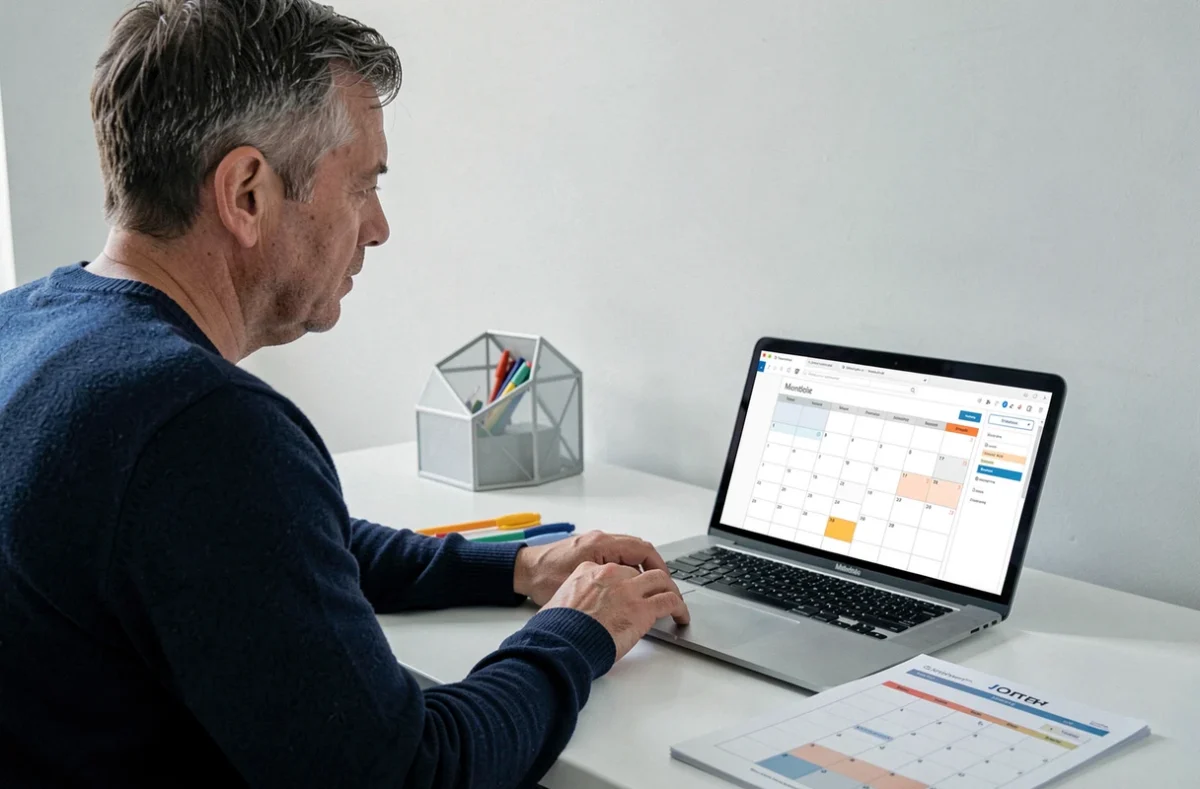
This reflex applies regardless of the tool. On a spreadsheet like Excel or an online generator, you can print a free monthly schedule on Myblog and then check the paper output in just a few seconds. The goal remains the same: a readable schedule even without color cartridges.
Local holidays on a monthly schedule: adapting the calendar to your territory
A calendar downloaded online displays national holidays. For most of the territory, the list is sufficient. In Alsace-Moselle, Good Friday and December 26th are added to the classic holidays. Overseas, other local dates come into play.
When creating a schedule for a team or a family spread across several areas, blocking all holidays as non-working days by default is a mistake. The Labor Code recognizes holidays, but their actual non-working status depends on the sector and company agreements. It’s better to provide a modifiable box rather than a fixed colored area.
Quick method to integrate local holidays
- Start from a blank template in PDF or Excel format, without pre-filled holidays, to avoid having to delete those that do not apply.
- Manually add the relevant holidays (national and local) in the corresponding boxes, with a brief mention (“local holiday” or “national holiday”).
- Visually distinguish non-working holidays from potentially working holidays with a different symbol (asterisk, dotted border) rather than by color.
This approach takes a few extra minutes, but it produces a reliable document for the entire year.
Format and size of boxes: designing a monthly schedule that you actually fill out
A month of 31 days spread over a grid of 5 or 6 lines, in A4 portrait format, leaves boxes barely two centimeters high. You can fit one handwritten line, not two. This is the primary reason why a schedule ends up being abandoned.
Switching to landscape format nearly doubles the width of each box. If the printer accepts A3, the gain is even more significant. For those sticking with A4, one trick works well: split the month into two halves printed on two separate sheets. You lose the monthly view at a glance, but gain usable writing space.

Print settings to systematically check
The on-screen rendering does not guarantee that the schedule will fit correctly on the page. Three parameters to check in the print preview:
- The scale: some browsers automatically reduce the document to fit it on one page, which compresses the boxes. Forcing the scale to 100% and accepting overflow onto two pages yields better results.
- The margins: reducing the margins to the minimum allowed by the printer frees up space. On most models, the default margins are generous.
- The orientation: a monthly grid schedule reads better in landscape. If the template is in portrait, changing the orientation before exporting to PDF avoids cropped boxes.
Customize a free monthly schedule without spending the evening on it
There are two families of free tools. Online generators (like Ouest-France Kalendrier or Canva) offer ready-to-fill templates with a polished look. Spreadsheets (Excel, Google Sheets, LibreOffice Calc) provide total control over the structure but require building the grid yourself or starting from an existing template.
For quick personal use, an online generator with PDF export is sufficient. You choose the month, adjust the colors if printing in color, export, and print. The whole process takes less than five minutes.
When the spreadsheet becomes more relevant
As soon as you need to reuse the same schedule each month with changing data (teams, rotations, objectives), a modifiable spreadsheet file saves time in the long run. You create the structure once, duplicate the tab for the next month, and only modify the dates and contents. Formulas can even automatically calculate the first day of the month and adjust the grid.
The choice between an online generator and a spreadsheet mainly depends on the frequency of use. For a one-time schedule, the generator is faster. For a recurring schedule with variable data, the spreadsheet is essential.
One last often-overlooked point: test the schedule a week before adopting it for the entire month. Print a draft version, fill it out for a few days, then adjust the box sizes or layout if the writing overflows. This trial phase avoids reprinting the same document three times.